 info@irishwebhq.com
A Closer Look at Basic XHTML Elements
Introduction
Let’s look at the most basic XHTML elements and see how they can be used to create structure and basic formatting for documents.
Headings
Heading structures are the most common used to set apart document or section titles.
These heading structures go into the body of the document. NOTE: The headings being discussed here have nothing to do with the head element <head></head>.
Six levels of headings are available, from heading 1 through heading 6 and these are defined using tag pairs <h1> </h1> to <h6> </h6>.
By default, browsers will display the six heading levels in the same font, with the point size decreasing as the importance of the heading decreases.
[sourcecode language=”html”]
<h1> This is my Page Heading</h1>
<h2>This is a Sub-Heading</h2>
[/sourcecode]
A heading always begins at the margin of a line and always forces a line break at the end of the heading. In other words, you cannot have two heading levels on the same line.
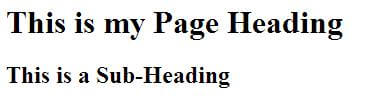
This example shows the default display of h1 and h2 elements
This also means that you cannot highlight text in the middle of a paragraph by marking it as a heading. If you try this, the paragraph will be split in two, with the heading text on its own line between the two pieces. Elements that behave like this are called block elements.The other type of element is inline. Inline elements can be placed in the middle of any other line of content. We will see examples of inline content later – <strong> and <em>.
Headings are important because they are logical separators of content on your page. You should use <h1> for the page heading. As you move to sub-sections of the page you can use level 2 headings <h2>, <h3> and so on. Headings are also important elements when you are optimising your website for the search engines. You should place your keywords in headings because the search engines will look at the headings on your page in order to determine the subject of your page.
Headings also help to reduce clutter on your page, adding whitespace by default because there is a margin above and below headings.
Paragraphs
When a browser encounters a <p> tag, it is presented as a new paragraph.
To begin a new paragraph:
Type <p>
Type the contents of the new paragraph
Type </p> to end the new paragraph.
[sourcecode language=”html”]<p> This text is in a paragraph. By default there is spacing above an below the paragraph. </p>[/sourcecode]
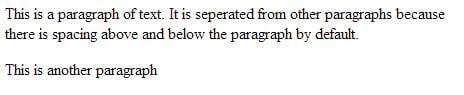
The default display of a HTML paragraph is with spacing above and below it
If you have long passages of text on your web page it is a good idea to divide them into paragraphs in order to make it easier for your users to read the content. Paragraphs also have a margin above and below them by default.
Line Break – The <br/> xHTML Element
Line breaks are used where you want to end a line after a certain word, but don’t want to start a new paragraph
The <br /> tag is used to create a line break
This forces a line break wherever you place it in the content (that is, whatever is after the <br /> tag will start from the left margin of the next line on the screen. Many people think that a line break adds a new blank line, and it may do if you place it before another blank line. This is not strictly true. Remember, the line break move any content that comes after it onto a new line.
You can use multiple <br /> tags to create extra space between lines or paragraphs.
Making Text Bold
One way to make test stand out is to format it in bold or italics. You should use bold or italic text only when you want to mark a word, phrase or clause as important. It should not be used for large passages of text and should not be used as a style element. Remember, use bold and italic text to make a word stand out or to emphasise it.
To make text bold:
Type <strong>
Type the text that you want to make bold
Type </strong>
[sourcecode language=”html”]<strong> This text is important (displays bold) </strong>[/sourcecode]
To make text italic:
Type <em>
Type the text that you want to appear in italics
Type </em>
[sourcecode language=”html”]<em> This is emphasised (displays italic) </em>[/sourcecode]

The strong and em tags in use. The purpose is to highlight or emphasise short words or phrases. Do not overuse.
Now try it yourself. Use the tags that you have learned today to make your web page a bit more interesting.
Try the following:
- Create a profile page
- Write about your favourite sport/music/movie
- Write a short story
- Write a review of a product that you have purchased online
Fasttrack your web design skills with this excellent book: HTML and CSS: Design and Build Websites

Get Started - Contact Us
Get in touch to discuss your website or ecommerce design.
Please enter as much information as possible about your website requirements so that we can provide an accurate estimate.


